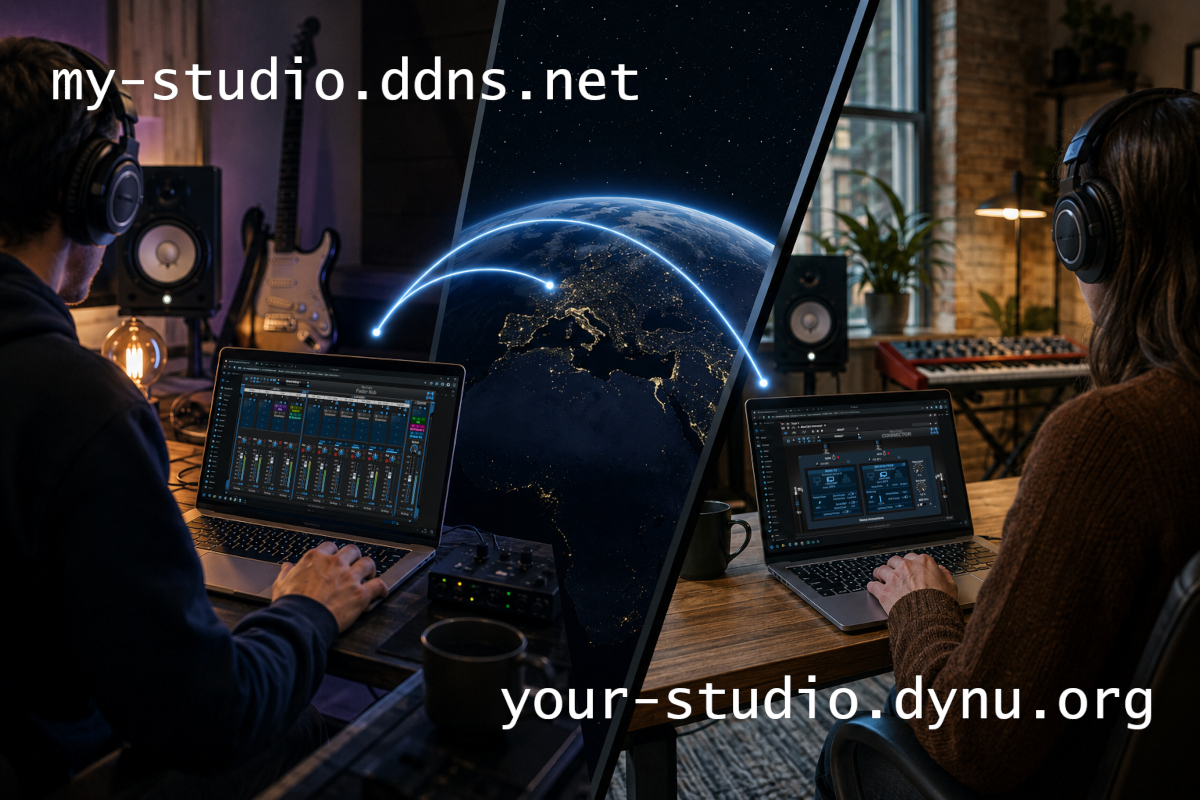
Whether you are using Connector, Freeceiver, or Fader Hub for remote jamming, mixing, listening, or recording sessions, here is a simple tip that can make connecting to remote machines over the Internet much easier.
The Problem with IP Addresses
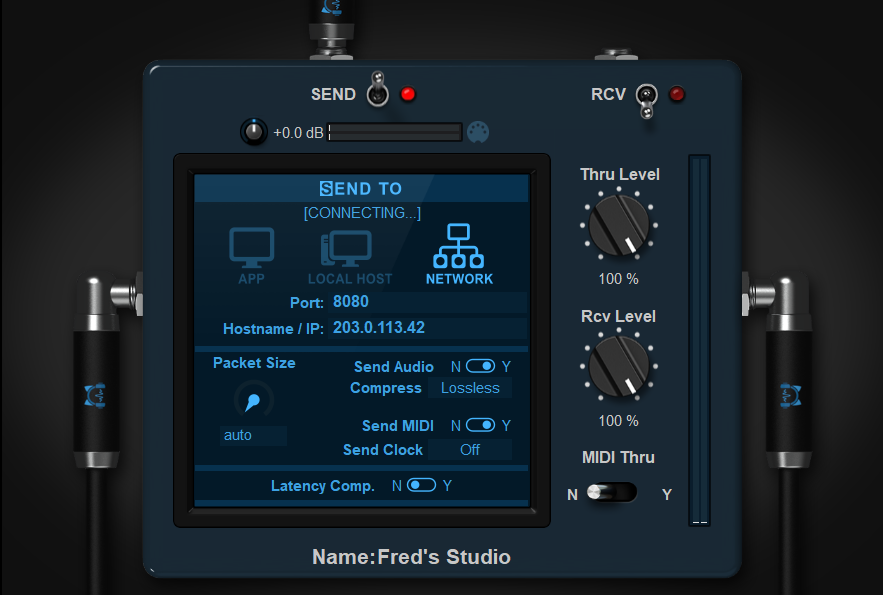
When connecting directly over the Internet, you often need to enter the public IP address of the remote computer or router.
The problem? IP addresses are difficult to remember and, in many cases, they can change over time. Internet Service Providers frequently assign dynamic IP addresses that may change after a router reboot or periodically without notice. When that happens, your saved connection settings no longer work, and you have to find and share the new address.
What Is Dynamic DNS?
Dynamic DNS (DDNS) solves this problem by associating a permanent hostname with your Internet connection.
Instead of connecting to an address such as:
203.0.113.42
you can connect to something much easier to remember, such as:
my-studio.ddns.net
Whenever your public IP address changes, a small update service automatically updates the hostname so that it always points to the correct address.
Think of it as having a personal website address for your studio or home network, accessible from the outside world.
Free Dynamic DNS Services
Several providers offer free Dynamic DNS plans, for example:
No-IP
Duck DNS
Dynu
Many modern routers and Internet gateways also include built-in support for Dynamic DNS services, making setup almost effortless.
Setting Up Dynamic DNS
In most home, studio, or office environments, Dynamic DNS can be configured directly on the router or Internet gateway. After creating an account/hostname with a Dynamic DNS provider, simply enter your hostname and account details in the router’s Dynamic DNS settings page.
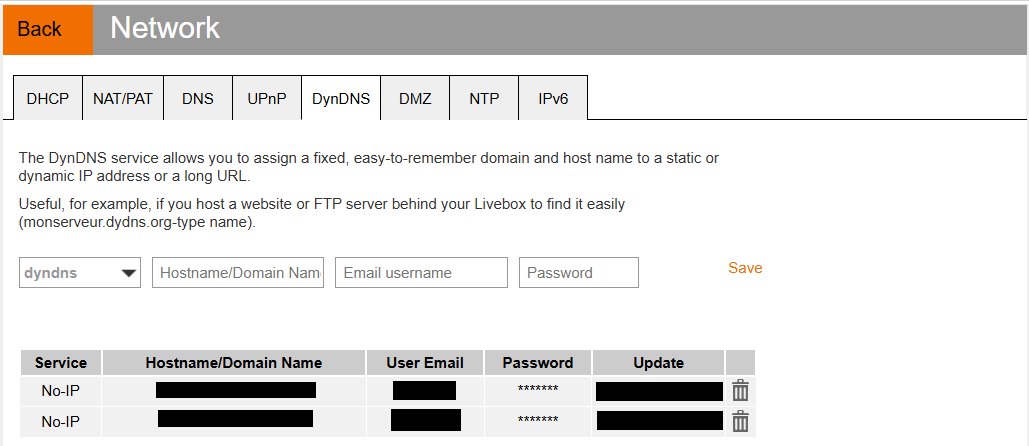
From that point on, the router automatically notifies the Dynamic DNS service whenever your public IP address changes. There is no need to keep a separate application running on your computer, and the hostname will always point to your current Internet connection.
Some Internet Service Providers also offer their own Dynamic DNS service or hostname management features directly from the router’s administration interface, making the setup process even simpler.
As for opening ports on the router, Blue Cat’s Connector, Freeceiver, and Fader Hub can usually take care of that automatically using UPnP (Universal Plug and Play), provided that UPnP is enabled on the router. In many cases, this means you can get a remote session running without manually configuring port forwarding rules. If automatic configuration is not available on your network, ports can still be forwarded manually if needed.
Setting Up the Connection
Blue Cat’s Connector, Freeceiver, and Fader Hub support hostnames and Dynamic DNS addresses natively. There is no special configuration required within the applications.
Once your Dynamic DNS hostname is configured, simply use it instead of the IP address when creating a connection.
For example, replace:
203.0.113.42
with:
my-studio.ddns.net
That’s much easier to remember and share with collaborators.
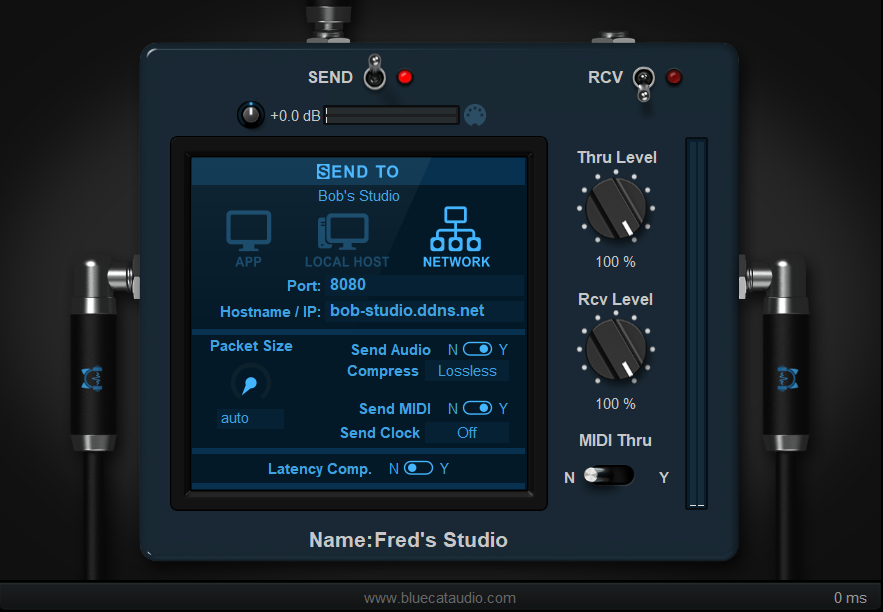
Even better, save the connection settings as a preset. The next time you load the preset, the application will automatically resolve the hostname and reconnect to the correct machine, even if the underlying IP address has changed since your last session.
Enjoy!
A few minutes spent setting up Dynamic DNS can save a lot of time and frustration when working remotely. It makes sessions easier to manage, simplifies collaboration, and helps your saved presets remain valid over time.
Happy remote recording, mixing, and jamming!