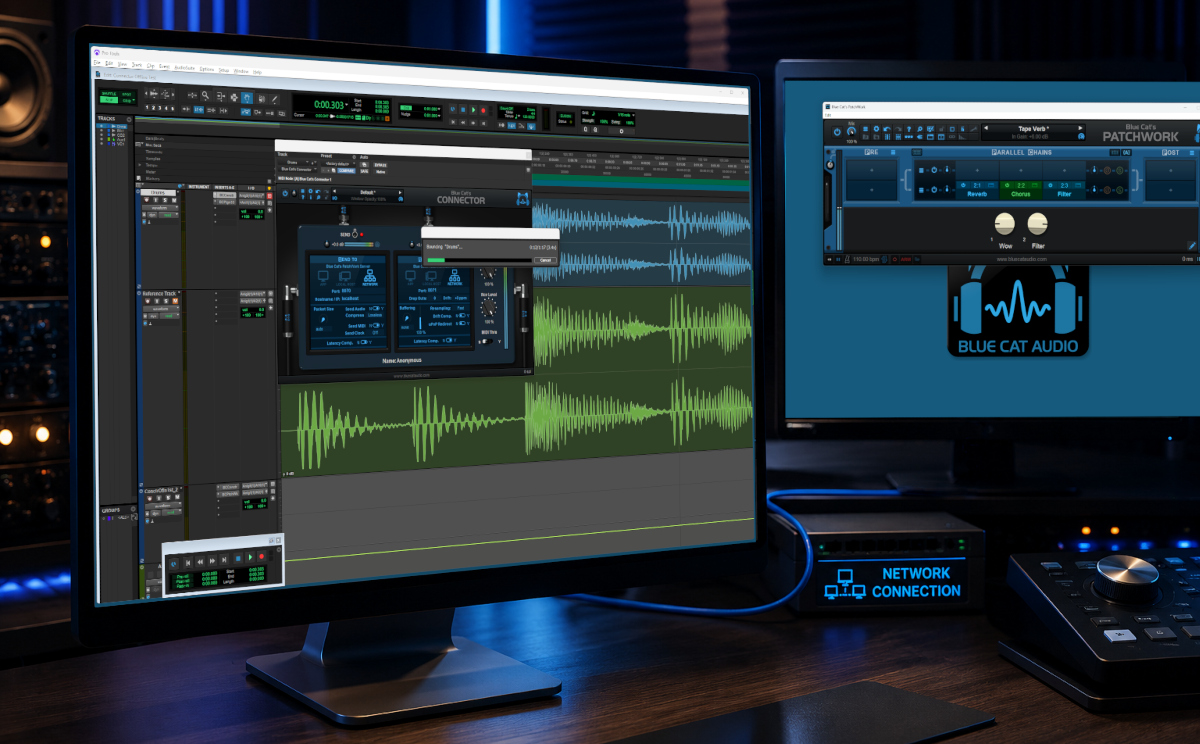
You have been asking for it, it’s now here! The latest release of Connector (1.4) and Freeceiver (1.3) now supports offline bounce/render and track freeze.
Let’s see in details how it works and what this means for your workflow when running multi-application / multi-devices audio sessions.
Background: Realtime vs Offline Render
Connector was originally designed to connect multiple applications across one or more computers for real-time audio and MIDI processing. This involves synchronizing multiple clocks from different audio interfaces and ensuring that each application receives audio and MIDI data in time to process and render it before an audio dropout occurs.
With small buffer sizes -typically 64 samples or less to minimize latency- the available processing window can be well under a millisecond. Although processing only occurs once per buffer cycle, meeting these timing constraints is critical. To support this, Connector uses a fully asynchronous communication model that minimizes impact on the audio processing thread of your DAW.
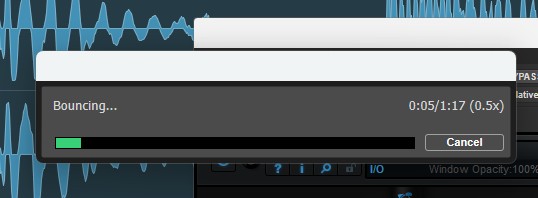
Offline rendering, however, presents a very different challenge.
When bouncing a track or rendering a mix, the host application generally processes audio as quickly as possible. Occasional delays are acceptable because there is no risk of starving an audio interface’s output buffer. However, when two applications are connected through Connector, the host performing the offline render must still ensure that data from the connected application has been received before processing the next buffer. This requires a synchronous communication model between applications.
The latest version of Connector combines the best of both approaches. While remaining highly optimized for real-time communication, it now also supports synchronous offline rendering. Connector can wait for connected applications to complete their audio processing before advancing to the next buffer, ensuring accurate and reliable offline renders.
Improved Workflow
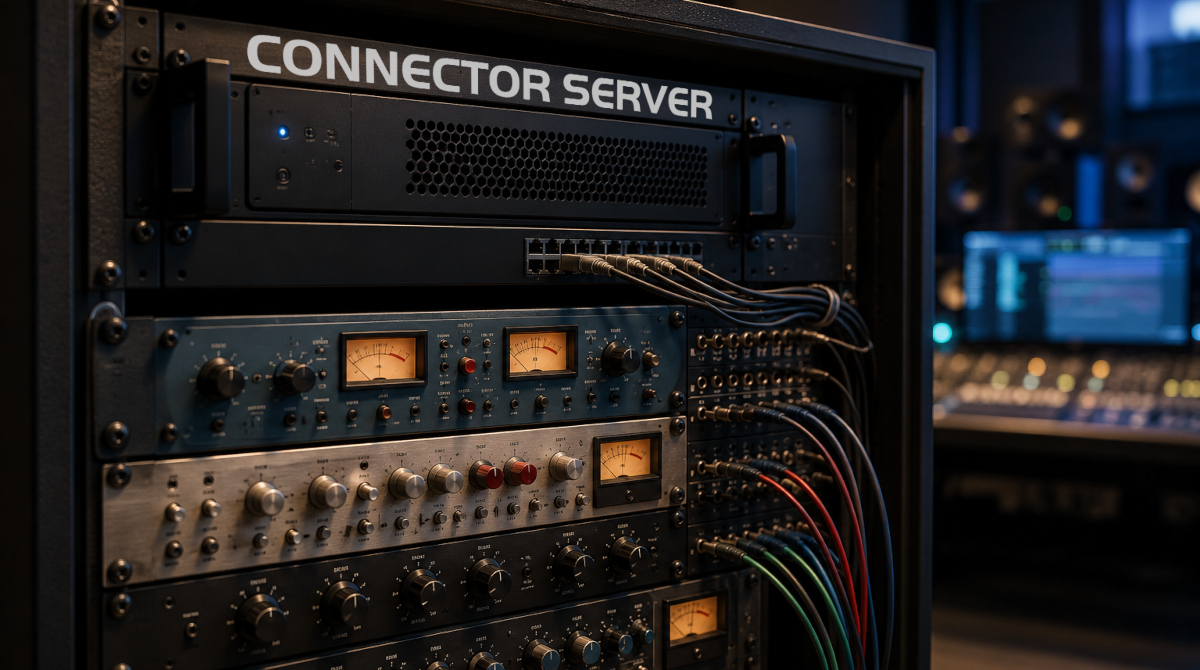
Today, Connector is frequently used to route audio and MIDI between DAWs, allowing users to access instruments, effects, and workflows that would otherwise be unavailable within a single application.
Many customers also use one of our audio applications in Network Slave mode to create a dedicated processing server on another computer.
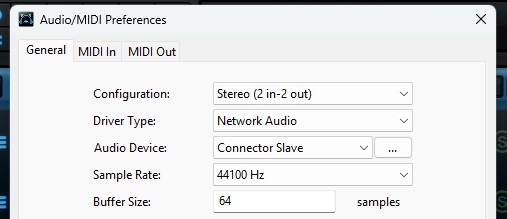
This can be useful for:
- Offloading CPU-intensive processing to improve real-time performance.
- Centralizing plug-in licenses on a single machine.
- Running legacy plug-ins that are unavailable on the local platform (for example, 32-bit vs. 64-bit environments, macOS vs. Windows).
- Accessing hardware processors connected to remote systems.
Until now, capturing the output from a Connector receiver plug-in was not always straightforward. Depending on the DAW, users often needed to create additional tracks or buses, configure custom routing, and record the output in real time. While it works very well, this process could be time-consuming and still vulnerable to occasional dropouts caused by system overload or network interruptions.
With offline rendering support, this workflow becomes significantly simpler.
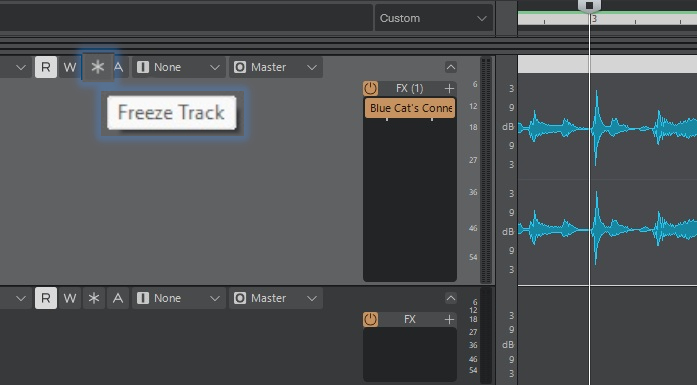
You can now freeze or bounce a track directly and have the processed output rendered automatically in place. Full project bounces are also supported, allowing Connector to communicate with other DAWs and computers during the render process so that remote effects, instruments, and processing chains are included seamlessly in the final mix.
When using one of our applications in Network mode or the ASIO driver on Windows, rendering can be substantially faster than real time. Even when connected to an application that relies on a physical audio interface, there is no need to use your DAW’s real-time bounce mode: Connector will automatically wait for the remote application to complete processing as required.
As an additional benefit, this feature also provides a convenient way to monitor rendered content in hosts that do not offer a dedicated real-time bounce option.
Supported Workflows and Best Practices
Offline rendering works best when Connector is used in relatively simple connection topologies. In general, a single connection between two applications provides the most reliable results. As connection schemes become more complex, the likelihood of synchronization issues during synchronous offline rendering increases.
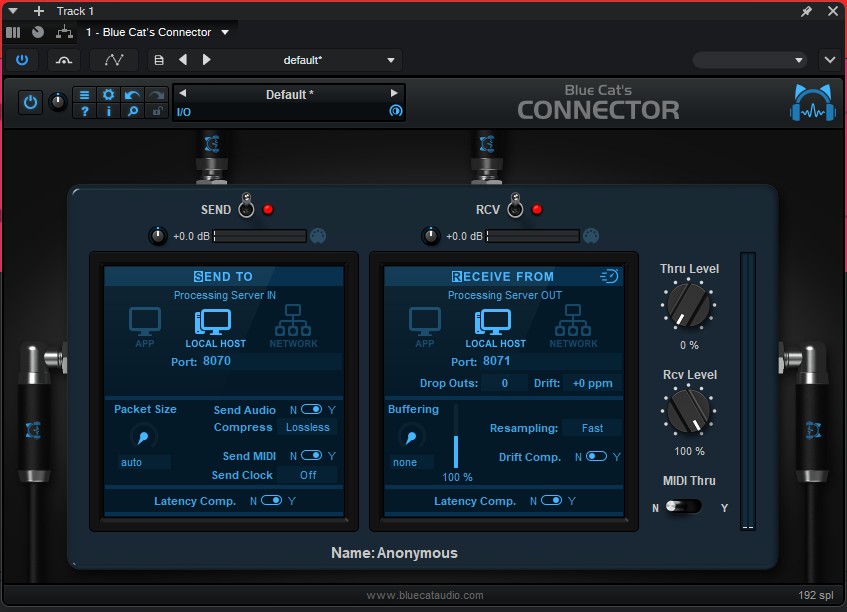
To achieve the best results, we recommend the following:
- Use a single Connector instance for both sending and receiving within the host application performing the offline bounce. Using separate Connector instances on different tracks—one for sending and another for receiving—may introduce synchronization issues depending on how the connected applications schedule their processing.
- Use the same buffer size across all connected applications. While Connector compensates for latency automatically, reported latency may not always be sample-accurate when different buffer sizes are used.
- Keep the sender packet size set to Auto whenever possible. Manually forcing a packet size may affect synchronization and rendering behavior in certain configurations. The Auto setting provides the most reliable results in the majority of setups.
- Exercise caution when a connected application is attached to an audio interface. During offline rendering, such applications will still operate in real-time mode. When multiple connections are active simultaneously, processing order cannot always be guaranteed, which can lead to synchronization problems. For this reason, a single connection between applications is generally recommended.
- When offloading processing to remote computers as shown in this tutorial, use a dedicated instance of the remote application for each track. This provides the most predictable behavior.
- Leave a short period of silence at the beginning of your tracks. If synchronization or latency calculations cannot be established immediately, a few bars of silence give Connector enough time to complete initialization before processing begins. This may typically happen if the host application does not support latency changes when switching to offline rendering.
Note: offline rendering support currently applies to Localhost and Network modes. App Mode is unaffected by this feature and continues to operate exactly as in previous versions.
How to Enable Offline Rendering Support
To get started, download and install the latest Connector release (which also includes an updated free ASIO driver). If you are using PatchWork or Fader Hub together with Connector, the latest preview is also recommended, to get more accurate latency compensation.
Offline rendering support is disabled by default to ensure that existing projects and workflows continue to behave exactly as they did in previous versions.
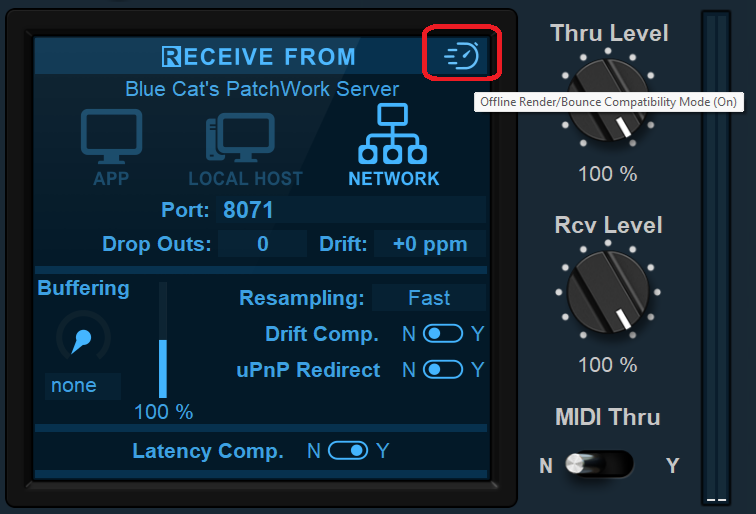
To enable the feature, open each Connector instance that should participate in offline rendering in the host application doing bounces and click the “Offline Render/Bounce Compatibility Mode” button located in the upper-right corner of the Send and Receive sections. Once enabled, Connector will automatically switch between its asynchronous real-time mode and synchronous offline rendering mode as required by the host application. You do not need to change any setting in the connected instances that are in the other applications.
Existing sessions that do not enable this option will continue to operate exactly as before.
Limitations and Known Issues
As discussed earlier, offline rendering operates very differently from real-time processing. While Connector’s real-time communication model is designed for maximum flexibility, offline rendering have different requirements for applications to synchronize their processing and exchange data buffer by buffer.
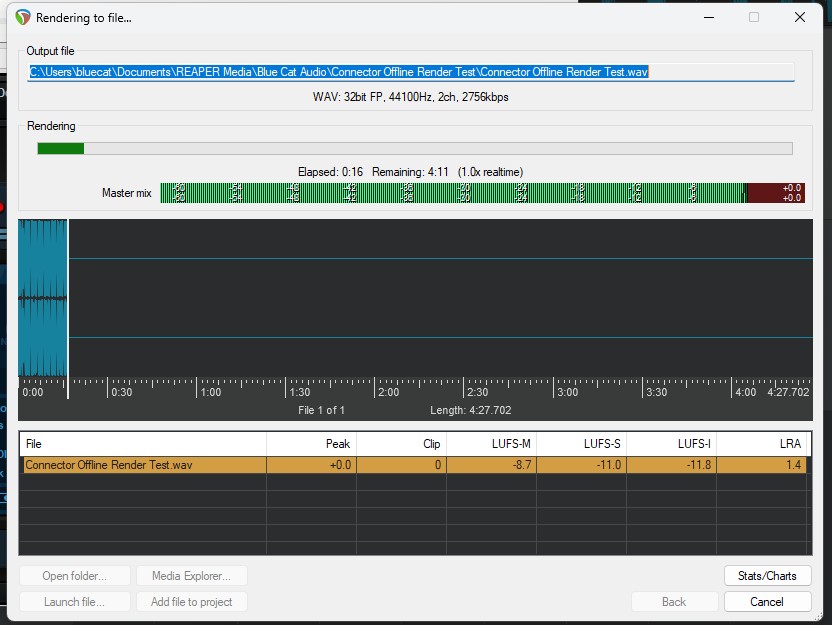
As a result, the scope of offline rendering is not as broad as that of real-time operation, and some limitations currently apply. We have also identified a few host-specific behaviors related to latency compensation.
Performance
- Rendering is not faster than real time when a connected application is using an audio interface. In these cases, the remote application may still need to process audio in real time, which limits the overall rendering speed.
- Network-based offline rendering may be slower than processing on a single machine. Although distributing processing across multiple computers can significantly improve real-time performance, the additional communication overhead may reduce or eliminate any speed advantage during offline rendering.
Connectivity
- Complex connection topologies may not render reliably offline. Offline rendering works best with a single connection between two applications. Projects involving multiple Connector instances sending and receiving audio across several tracks and applications may encounter synchronization issues due to the fundamental differences between asynchronous real-time processing and synchronous offline rendering.
Latency Compensation in Host Applications
Connector’s latency estimation has been significantly improved in this release. However, the effective latency in offline rendering mode is often different from the latency observed during real-time operation—typically lower.
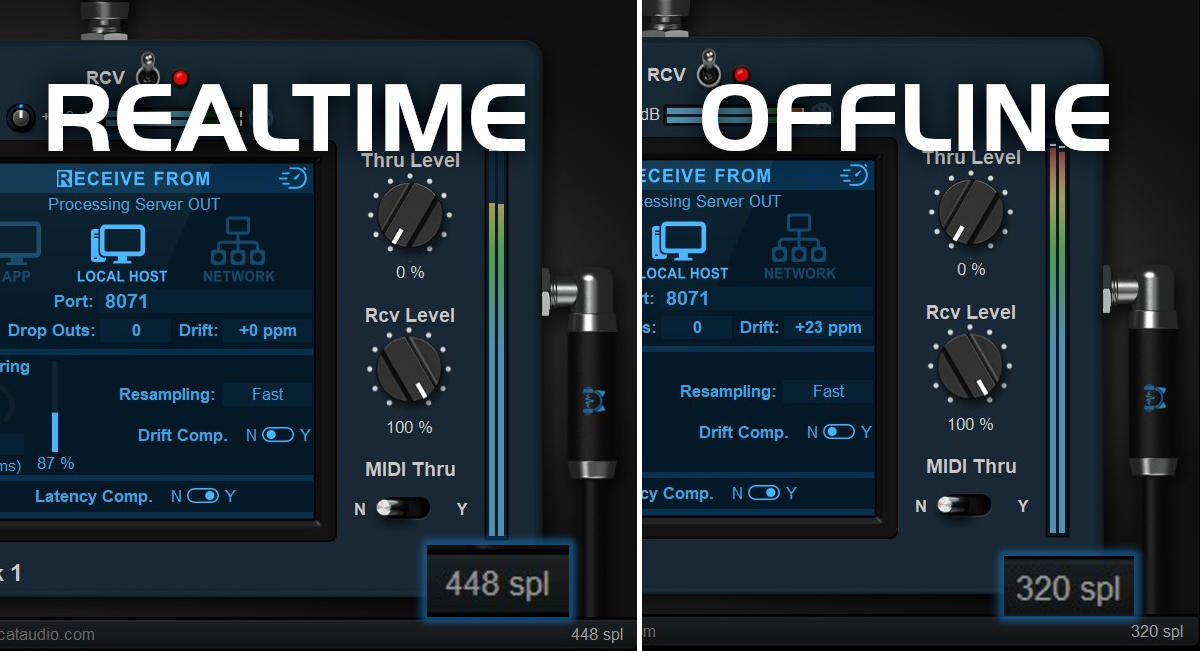
To account for this, Connector updates the latency it reports to the host whenever it switches into offline rendering mode. Most hosts handle this correctly, but some do not update their delay compensation accurately, which can result in rendered audio being offset from its expected position.
Based on our testing so far:
Latency compensated correctly:
- Pro Tools
- Cubase
- Reaper
- Universal Audio LUNA
- Fender Studio Pro
- Cakewalk Sonar
Latency compensation issues observed:
- Ableton Live
- Apple Logic Pro
When latency is not compensated correctly by the host, rendered audio will typically appear slightly earlier than expected on the timeline:
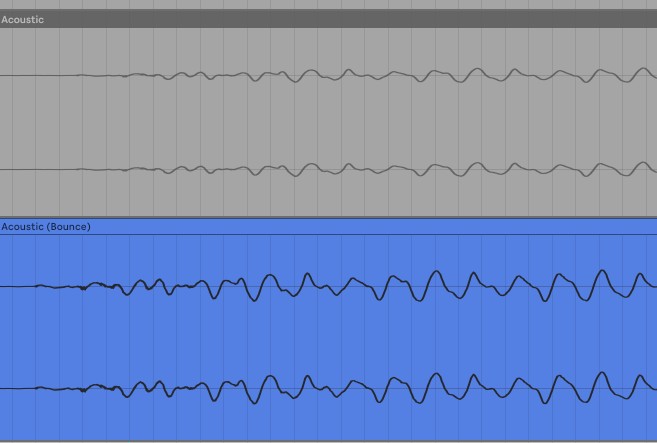
In these situations, we recommend disabling latency compensation within Connector and manually adjusting the rendered track if necessary. When using automatic buffering, the reported latency is often zero, making manual correction unnecessary in many cases.
Enjoy!