
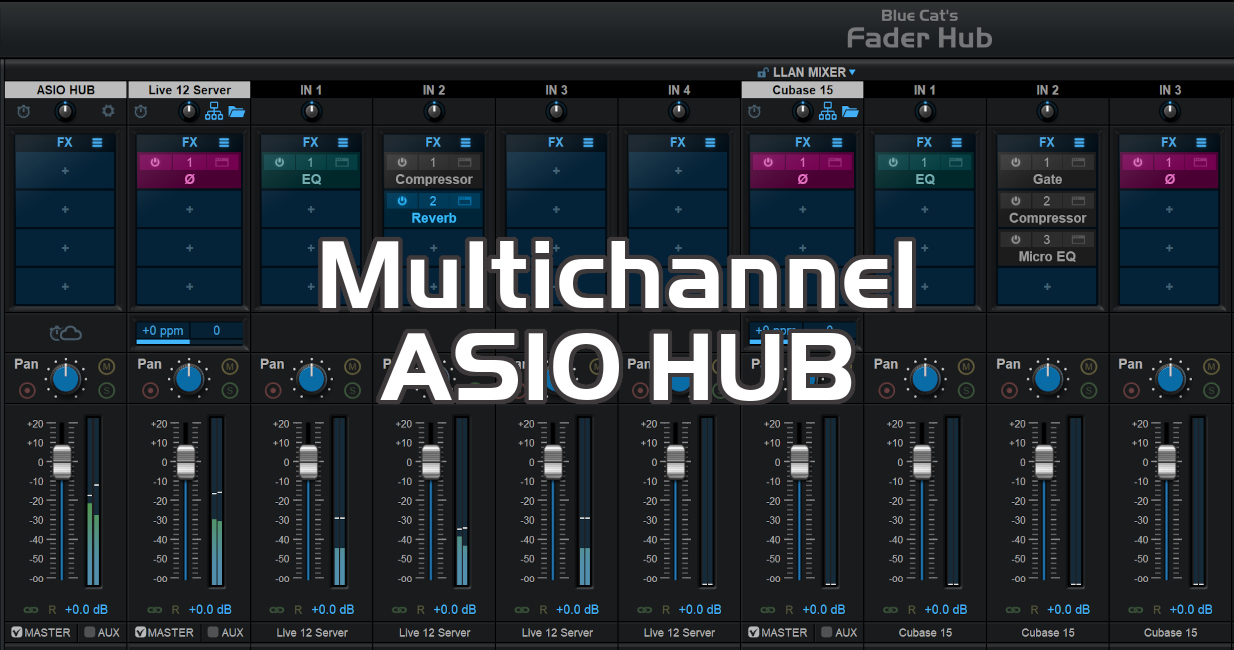
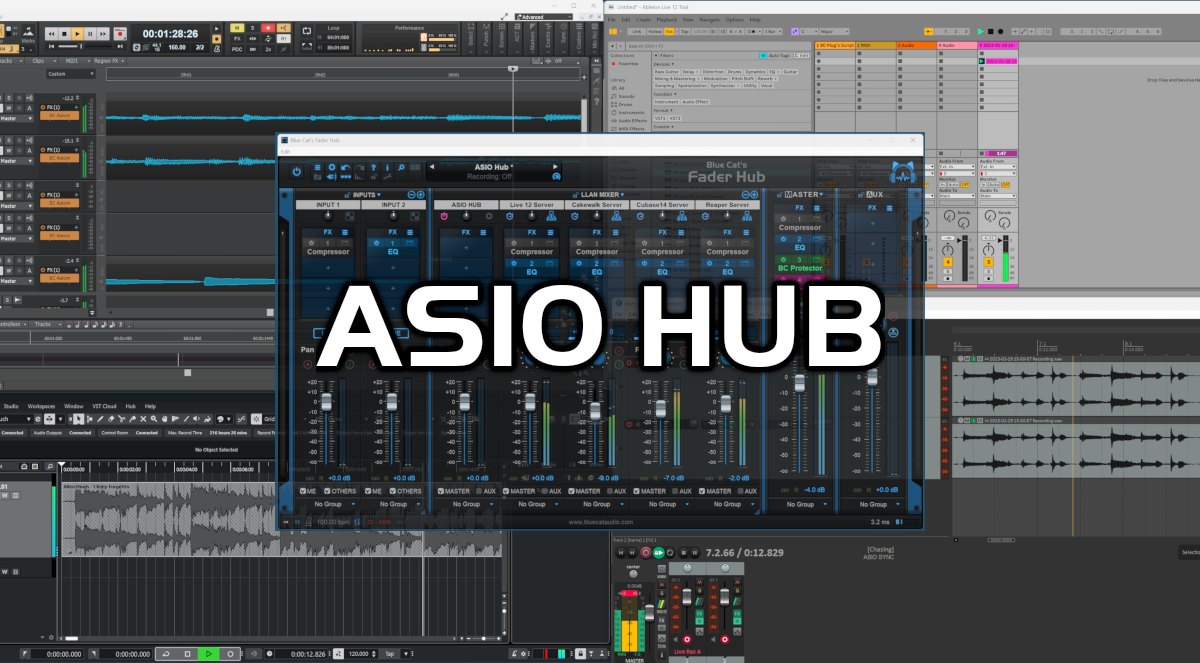
As seen earlier, Fader Hub can be used to share an ASIO driver between several audio applications and synchronize them together, whether they are running on the same machine or different computers connected together thru the network).
With the new Fader Hub 1.3 update it is now even possible to share up to 16 channels of audio between the apps, as well as receive up to 8 stereo busses and remix them together (with effects) in Fader Hub. Let’s see how!
ASIO Hub Setup
First, setup Fader Hub and your applications as explained in the first tutorial: Fader Hub gets direct access to the audio interface via the ASIO driver, and all applications are used as slaves of the Fader Hub using the free Connector ASIO driver.
Note: in order to get multichannel output work optimally, please make sure to get the latest version of the Connector driver.
Multichannel Input
Now that the apps are connected together with Fader Hub, open the settings for each connection (click on the app name at the top of the LLAN mixer strips, or the network icon), and enable the “Multi Ch” option:

Fader Hub will now send all input strips as independent stereo audio streams to the app. So you can now record/monitor audio from separate inputs simultaneously in the application:
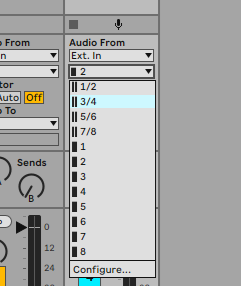
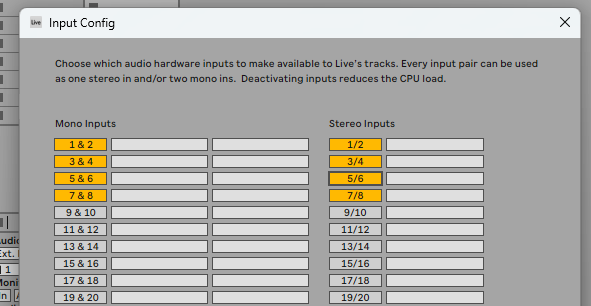
In many applications, you may have to first enable the inputs of the Connector driver to get them listed:
Note: you can choose to send individual inputs to some applications, while other get the full mix, as the multichannel streaming option is independent for each connection.
Multichannel Output
When multichannel mode is enabled, Fader Hub can also receive multiple stereo streams and remix them together with effects.
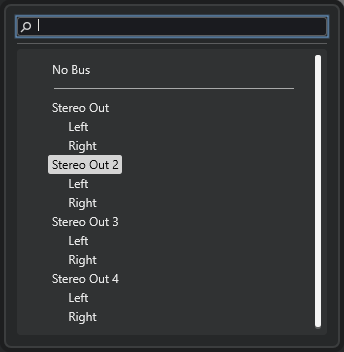
If the app has been setup to use more than a stereo output, you can route any track or bus to one of these outputs and see them in the Fader Hub LLAN mixer as sub-strips of each app:
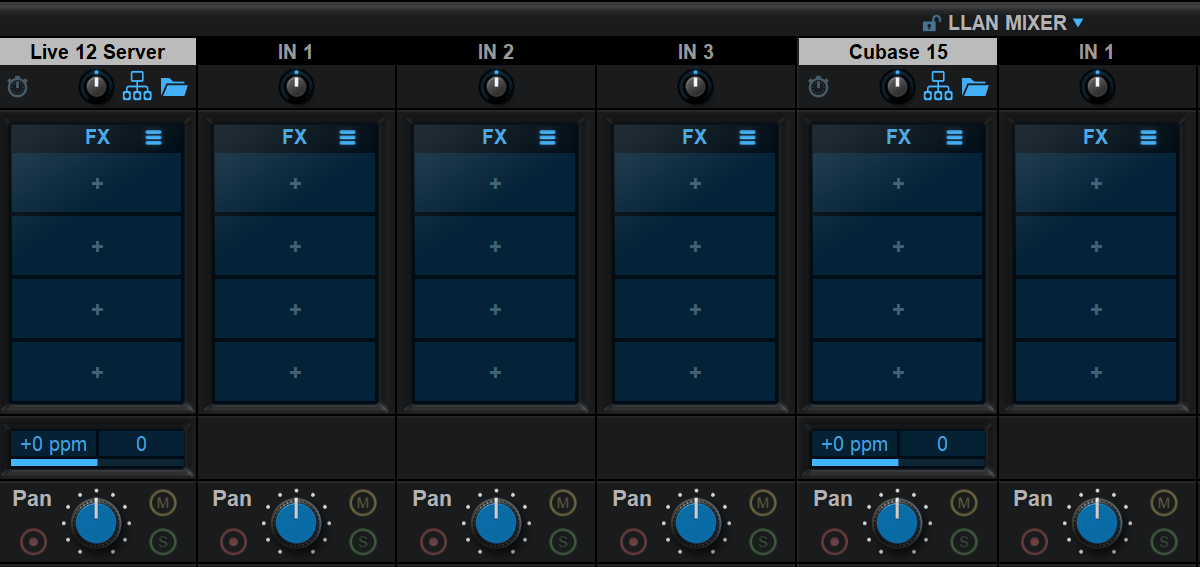
This lets you apply different effects to different tracks/busses at the output of each application and remix them together.
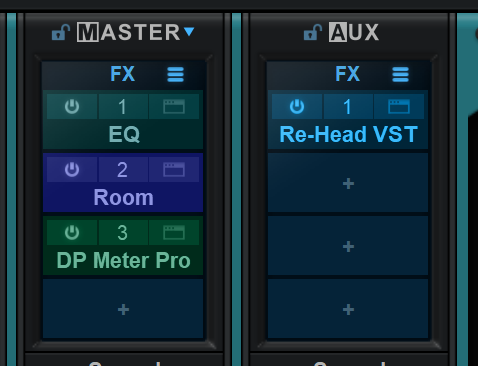
In addition to helping share the driver between applications, it is also a great way to add effects that are specific to your current monitoring situation without affecting the project of your favorite DAW(s): EQ, room compensation, headphones compensation etc.
Also, since Fader Hub provides two separate output busses, you can also have a separate setup headphones and monitors:
Enjoy!


In the future will mono channels be possible in Fader Hub/ASIO Hub in addition to stereo channels?
It’s currently not in the plans (although you can already use mono inputs and mono to stereo strips), but can you maybe give us more details about how/why you would like to use it this way?